Chapter 10
Security & Hardening
The perimeter is only half the job. This chapter is about closing the doors you are not using, watching the ones you are, and proving who is allowed through them.
A server is most exposed not when something attacks it, but when it quietly drifts: a firewall left open, a password login no one disabled, a certificate that expired last week, a mail server that will relay for anyone. FrontierStack treats hardening as a continuous, observable state rather than a one-time checklist. The Security pane is your console for the host in front of you; the AI Administrator (Chapter 13) carries the same checks across your whole fleet over SSH. Everything here is read-only until you ask for a change, and every change is one you could make by hand.
10.1The firewall: Application Firewall and pf
macOS ships two firewalls and FrontierStack reads both. The Application Firewall (ALF) is the per-app layer you set in System Settings; the Security pane reports its state — enabled, stealth mode, block-all-incoming, and how many app rules exist — so you can confirm at a glance that it is on. The pf packet filter is the lower, port-level layer, and this is the one FrontierStack manages directly.
App-managed pf rules live in their own file, ~/Library/Application Support/FrontierStack/pf-frontierstack.conf, loaded into a dedicated frontierstack anchor that is wired idempotently into the system /etc/pf.conf. Keeping rules in their own anchor means FrontierStack never edits Apple's base ruleset and your rules survive a reload without trampling anything. Adding or removing a rule reloads pf through an authenticated admin prompt.
From the AI side, the firewall_rule tool adds or removes a single allow/deny rule for a port, optionally scoped to a source address. It detects the target's operating system first: This Mac and remote macOS hosts get pf (the frontierstack anchor); Linux servers get ufw. It never sends a ufw command to a Mac or a pf rule to Linux.
ufw on a server you only reach over the network, confirm the rule allows your management path, and keep a second way in (console, KVM-over-IP, Headless Setup's Screen Sharing).10.2Intrusion prevention and the open-ports watch
An open port that has to stay open still needs a guard. The Security pane integrates two intrusion-prevention engines. fail2ban bans IP addresses that match abusive log patterns — SSH and Apache brute force are the classic cases; the pane shows whether it is installed and running, its jail count and how many addresses are currently banned, with a one-click Reload and a "write a starter jail.local" action that drops in a sane SSH jail without overwriting your overrides. CrowdSec adds a shared reputation network on top, showing its active decision count and a Metrics button. Both run as root services installed via Homebrew.
The Open Ports section lists every listener on the host. A companion watch — remote-control and screen-sharing exposure — specifically flags VNC/Screen Sharing (:5900), Apple Remote Desktop, AnyDesk, TeamViewer, Chrome Remote Desktop, Splashtop, RustDesk and Tailscale exit-node advertising, and turns red when someone is connected right now. The Recent Intrusions and Active Bans sections aggregate detections from fail2ban.log, CrowdSec, Suricata's eve.json and Wazuh's alerts.json, newest first; sources you do not run are simply skipped. A new ban, a new listener or an active inbound session can each raise an alert — configure delivery in Chapter 11. The same section checks FileVault on this Mac, judged by what the Mac holds: if it is off while the Mac has SSH access to linked servers or the app-managed SSH key, the row turns red and an alert is raised, because a lost or stolen laptop would give up the keys to your whole fleet. A Mac with no fleet credentials is left alone.
10.3SSH hardening
SSH is the single most valuable door on most servers, so the Security pane includes an SSH Hardening Audit. It reads the effective configuration with sshd -T — not just the file on disk, but what the daemon actually applies after its drop-ins — and flags the settings that matter: PermitRootLogin, PasswordAuthentication, and the rest. When SSH is reachable from the network the pane says so plainly, because that is exactly where the findings matter.
The baseline for an internet-facing host is key-based authentication with PasswordAuthentication no. Apply fixes by editing /etc/ssh/sshd_config.d/ rather than the main file, so package updates leave your hardening intact. FrontierStack's own fleet channel already follows these rules: it uses Ed25519 keys, BatchMode=yes, IdentitiesOnly=yes and host-key trust-on-first-use recorded in known_hosts (Chapter 8). If a host's key access breaks, the repair_ssh_access tool reinstalls the managed key using a one-time login password held in your local vault — the password is read on your Mac and never sent to the AI.
10.4Server Security: the posture check for a remote host
Everything above describes the Security pane for this Mac. The Server Security pane is its counterpart for a linked server: the same posture check, read over SSH, for any host in your fleet. Open a server's detail and click Check… beside Security, or open the pane directly and pick a server from the host menu. A single scan reports the SSH hardening that matters (PermitRootLogin, PasswordAuthentication, the listening port), whether a firewall is present and enabled (ufw, firewalld, nftables or raw iptables), the intrusion-prevention engines running (fail2ban, CrowdSec), the count of pending security updates (apt, dnf, yum), every service listening on all interfaces, and host-integrity smells — world-writable directories missing the sticky bit, unexpected SUID binaries.
Each finding is scored High · Warning · Info · OK and rolled up into a one-line summary badge, so you can sweep a fleet and see at a glance which host needs attention. The pane never changes anything: a Fix it link takes you to the pane that actually makes the change — the Server Firewall pane to enable a firewall or edit rules, the Remote Tools SSH-hardening review, or the security tools that install fail2ban/CrowdSec. It reads deepest as root or with password-less sudo; without either it runs what it can and tells you so. Cross-links run both ways: the local Security pane links to macOS Firewall, Server Security links to Server Firewall, and a pinned server's panes link to both.
10.5The Malware Audit pane
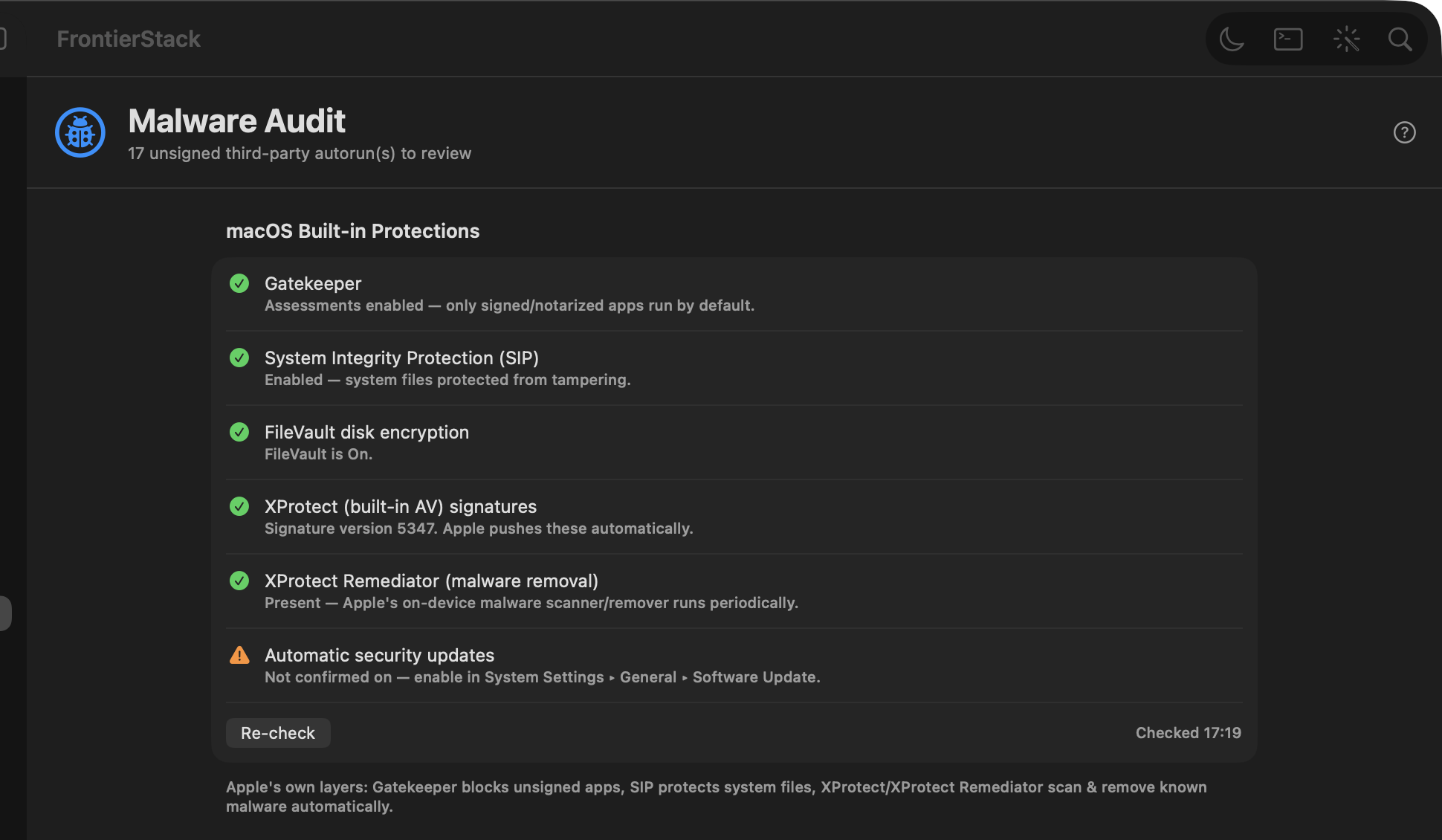
The Malware Audit pane is a defender's dashboard for a single Mac, built in sections from the cheap, always-on checks down to the heavy forensics.
| Section | What it checks |
|---|---|
| Protections | Apple's own layers — Gatekeeper (blocks unsigned apps), SIP (System Integrity Protection), FileVault, and XProtect / XProtect Remediator, which scan and remove known malware automatically. Re-check refreshes them. |
| Persistence & Autoruns | Third-party LaunchAgents and LaunchDaemons — the classic macOS persistence spot. Unsigned items show in orange so you can confirm you installed each one; Apple-signed items are normal. |
| ClamAV On-Demand Scan | Signature-based antivirus. Point it at a path, Scan, and read the list of infected files. Run Update Signatures (freshclam) before the first scan. Read-only: it reports, it never deletes or quarantines. |
| YARA Rule Scan | Rule-based classification against IOCs and malware families, using YARA-X (yr) or classic YARA. Pair it with rules from your threat-intel feeds. |
| File Reputation | Computes a file's SHA-256 and opens its VirusTotal report (70+ engines, no API key). The file itself is never uploaded — only its hash. |
The same on-demand ClamAV scan is mirrored in the Security pane, and the AI's malware_scan tool runs ClamAV and/or YARA against any path on request — equally read-only.
10.6Deeper forensics tooling
When a quick scan is not enough, the heavier analysis lives as installable services in the Security Tools catalog category — reveal them with the catalog filter (Chapter 6). Volatility 3 is a memory-forensics framework for examining a RAM capture; capa identifies the capabilities hidden inside an executable; the CAPE and Cuckoo sandboxes detonate a suspicious sample in isolation and extract its configuration and behaviour. Threat-intel services such as URLhaus, OpenPhish and OpenCTI feed your YARA and sandbox rules. SIEM platforms such as Wazuh have their own SIEM & Security Data section, described below.
10.7The EDR Fleet board
If your endpoints already run a commercial EDR agent, the EDR Fleet pane gives you one read-only roll-up across every console. Choose Add Console…, pick a provider and paste its API credentials — stored in the Keychain, never in the AI's view. Endpoint and open-detection counts are pulled from each vendor's REST API for SentinelOne, Huntress, CrowdStrike, Sophos Central, Bitdefender GravityZone and Microsoft Defender for Endpoint; Jamf Protect and LimaCharlie connect for reachability, and any other console can be added as Generic (reachability only). A Fleet totals row sums the lot. The board refreshes every few minutes; a console going unreachable raises an alert under the Security group, with its open-detection count riding along in the alert detail. Open Console jumps you to the vendor's own dashboard for the deep work.
10.8SIEM & Security Data
The SIEM & Security Data sidebar section separates a security-operations workflow that used to be scattered between Security Tools and Logging. Its SIEM Overview answers the first fleet question: which security platforms and data paths does FrontierStack know about, and are their watched management endpoints reachable? A row becomes configured only when the app has concrete evidence — a saved API credential, a detected local install, or a remote endpoint watch. A saved key is labelled Credentials saved, not Connected; a TCP response is labelled Reachable, not Healthy. This distinction prevents a listening but broken or unrelated service from receiving a false green status.
The section has two layers:
- SIEM platforms — Wazuh, Security Onion, Splunk, Elastic Security, Microsoft Sentinel, Google Security Operations, Graylog, IBM QRadar, Sumo Logic Cloud SIEM, Rapid7 InsightIDR, LogRhythm, Devo, FortiSIEM and OpenText ArcSight.
- Security-data pipelines — VirtualMetric DataStream, Cribl Stream, Logstash, Vector, Fluent Bit, Fluentd, NXLog, syslog-ng and OpenTelemetry Collector. These collect, normalize, filter, buffer and route telemetry; they are not themselves necessarily the place where an analyst hunts an incident.
Open a service to choose the right setup. A cloud-only SIEM shows a Connect area for its account/tenant and least-privilege API token, stored in the macOS Keychain, with no meaningless local Install button. A self-hosted or hybrid platform offers its vendor deployment path and a Remote Instance watch for the management console. Collectors with a real Homebrew formula can be installed and controlled locally; Linux/Windows agents and appliances link to their supported packages instead of pretending to be Mac services.
Sources & coverage links the layers rather than merging them. Use EDR Fleet for endpoint-console coverage, Security for host/network detections and intrusion prevention, and Logs for local troubleshooting. The SIEM destination owns full event retention, correlation, hunting and incident response. FrontierStack remains the health and control plane: it keeps credentials local, checks the pieces it can prove, alerts on lost reachability, and takes you to the correct console for the deep work.
10.9Read-only security audits
The fastest way to learn where a host actually stands is the AI's security_audit tool, which runs a comprehensive, entirely read-only sweep on This Mac or any linked server over SSH. It self-detects the OS and checks pending security updates, disk encryption (FileVault or LUKS), the firewall (Application Firewall + pf on macOS, ufw / iptables on Linux), SSH hardening, listening ports, UID-0 and privileged accounts, passwordless-sudo (NOPASSWD) entries, intrusion prevention and recent failed logins. It uses passwordless sudo only where it is available and degrades gracefully where it is not. Nothing changes; you get a prioritised list of findings and specific fixes, which you can then apply yourself or hand back to the AI behind the usual approval card. Set target to a server's name to audit it remotely; omit it for the local Mac.
10.10The Security Audit pane: an exploitable-only auditor in a sandbox
The read-only security_audit sweep above tells you how a host is configured. The Security Audit pane asks a harder question: what here can an attacker actually exploit? It turns a coding agent into an adversarial auditor that maps the target, hunts from many angles — injection, broken access control, authentication and authorization, business logic, cryptography, exposed secrets, SSRF, misconfiguration and chained attacks — then tries to disprove each of its own findings, so what survives is only the issues with a concrete attack path. Every finding carries a scenario and a fix; there is no theoretical noise.
It runs in two modes. Codebase points the agent at a repository or web-project folder and audits the source. Infrastructure audits your own estate from the signals FrontierStack already gathers — Cloudflare zones and their TLS/WAF settings, domain and certificate health, each pinned server's OS, exposed services, remote-access and MDM/Activation Lock/FileVault posture, and the local firewall — assembled into a redacted inventory the agent then attacks.
The whole run happens inside a Sandcastle Docker sandbox, so an adversarial agent pointed at untrusted code never touches your host directly. The app provisions the sandbox image and runner the first time you run an audit (it needs Docker or Podman running); after that, runs start immediately. Findings render with severity badges and can be saved to Obsidian or raised as Alerts for anything critical or high. As everywhere else, only a redacted prompt leaves your Mac — secrets are stripped first — and the sandboxed agent authenticates with your Claude subscription using a token from claude setup-token (or an Anthropic API key).
.env, private keys, service-account.json — is refused rather than mounted into the sandbox. Audit a clean checkout.10.11Strix: AI penetration testing
The audits so far are read-only: they inspect how a host is configured and where its code might be exploitable. Strix goes further — it runs an active penetration test. From the Strix AI Security Testing section of the Security pane you point it at a repository folder, a Git URL, a domain, a URL or an IP address (or pick one of your linked hosts), choose a depth of Quick, Standard or Deep, and it maps the attack surface, attempts real exploit paths, and writes a penetration-test report.
FrontierStack does this by driving the open-source Strix command-line agent locally on your Mac and reading the run artifacts it leaves on disk — the findings, the run metadata and the report — rather than scraping any hosted service. If the CLI is not installed the section says so and offers an Install Strix… link; Update Strix upgrades it through uv or pipx, never by piping a script into a shell. An AI provider key is optional; when you supply one it is stored in the macOS Keychain, handed only to the local Strix process, and never displayed or sent to any cloud model — the pane shows only whether a key is configured.
The tiles summarise the last run: Critical, High and Medium counts, duration, anything new in the last 24 hours, and any failed scans. A run in progress shows live phase text and a Stop button; when new critical or high findings appear you get a local notification unless Silence alerts is on. Open Findings and Export Report surface the detail, and Re-run Failed Scan and Restart Scan Engine recover from a bad run. Serious findings are treated as sensitive and are never sent to cloud AI. The AI Administrator can drive Strix as well, through strix_status, strix_scan and strix_control, all covered in Chapter 13.
10.12Certificate Sources and TLS
An expired certificate is a self-inflicted outage. The Certificate Sources dashboard gives you one row per issuance stack on the host — Let's Encrypt (via acme.sh), Certbot, Step CA, Traefik and Cloudflare SSL — with expiry read directly from the certificates themselves using openssl. Cloudflare uses the token and zone you configured for its analytics; sources that are not present on this Mac show dimmed. For Traefik you can point the dashboard at its acme.json; for Step CA, at its URL.
For issuing certificates, FrontierStack offers two paths. mkcert creates a locally-trusted certificate — ideal for development on .localhost or LAN names, where a public CA is irrelevant; the Certificates pane's Get action uses it when installed. For anything the public must reach, use Let's Encrypt: the AI's issue_certificate tool runs acme.sh or certbot on This Mac or a linked server, and for the DNS-Cloudflare method it reads a CF_TOKEN vault secret that is injected at run time, never sent to the model.
10.13Mail security
A mail server is two distinct risks: it can be spoofed (someone forges mail as your domain) and it can be abused (it relays mail for a stranger). FrontierStack addresses both, with tools that understand the old Apple Server case where Postfix sits underneath.
- Anti-spoofing DNS —
email_auth_dnsbuilds the SPF, DMARC and (optional) DKIM TXT records: SPF declares who may send for the domain, DMARC tells receivers how to treat failures, DKIM cryptographically signs outgoing mail. Withpublish=cloudflareit creates the records for you; otherwise it prints the exact records to paste into BIND, dnsmasq or your registrar. - DKIM keys —
generate_dkim_keyrunsopendkim-genkeyon the server for a domain and selector and returns the public key as the TXT record to publish; the private key stays on the server for the OpenDKIM milter. - Postfix hardening —
harden_mail_postfixapplies safe defaults over SSH withpostconf: require SMTP AUTH to relay (this closes an open relay), reject unknown and unlisted sender domains, optionally enforce sender/login matching. It reloads Postfix and prints the effective settings. - Open-relay test —
test_open_relayruns a safe SMTP conversation (EHLO / MAIL FROM / RCPT TO to an external domain, then QUIT without sending) and reports whether the external recipient was rejected (good) or accepted (an open relay — bad). - Delivery probe — from a server's Mail Server Policy section, send one tagged test message end-to-end through the relay and read the exact SMTP verdict: accepted & queued (with the queue id), deferred, rejected, or a TLS-certificate failure. This is what distinguishes “accepted then silently dropped” from real delivery — and on a relay addressed by its LAN IP, whose STARTTLS certificate can't verify, a Trust LAN relay option retries over an encrypted-but-unverified channel. On an Apple Server.app box FrontierStack also finds Postfix's real log even when the config leaves it to syslog/ASL, and reads the mail queue and the Server.app
/Library/Logs/Mail/files.
serveradmin, which can overwrite main.cf and silently undo a harden_mail_postfix change. Review the result afterwards and, if it reverts, re-apply the equivalent settings through Server.app.10.14Who may change things from outside
Everything above hardens the machines FrontierStack looks after. This section is about hardening FrontierStack itself — because an app holding SSH keys, database passwords and cloud tokens for a whole fleet is a more attractive target than any single server it manages.
FrontierStack can be driven from outside through several doors: the MCP server for AI clients, the inbound HTTP control server for webhooks and the mobile panel, App Intents for Shortcuts and Siri, and — when you enable them — agent integrations. Each already carries its own token. Above all of them sit two settings in Remote Control & Lock, and it is worth being clear about which question each one answers.
The App Lock answers what survives a lock. Set a password, lock the app, and the window is covered while every external surface is either blocked outright or held to read-only.
10.17.1Fleet: require a physical security key
A Fleet licence adds Physical security key immediately beside the password-lock settings. Choose Yubico YubiKey, Google Titan or FEITIAN ePass, then enrol the key through Apple's system security-key sheet. FrontierStack stores only the public credential; the private key never leaves the dongle.
Once enabled, FrontierStack starts locked and re-locks when it goes into the background. It does nothing — the window and every external control surface remain gated — until an enrolled key is connected or presented and you touch it. If you also configured an App Lock password, unlocking is two-step: the correct password and a physical-key touch are both required. A missing key never falls back to password-only access.
Register up to three keys and keep at least one backup somewhere separate. The supported families are YubiKey, Google Titan and FEITIAN FIDO2/ePass. On iPhone and iPad, use a compatible USB-C or Lightning key, or present an NFC-capable model when Apple's sheet asks. Removing the policy also requires a fresh touch from a currently enrolled key, so someone with an unlocked session cannot silently weaken it.
Paired devices and Script Secrets
With a key enrolled, Paired devices need the key too is on by default. Creating a pairing code, pairing KeyRotate and raising a paired device’s permissions — a higher level, the remote shell or AI changes — each take a touch on this Mac. Demoting or revoking a device never does. A phone’s secrets and shell requests are refused until a touch opens a device key session (15 minutes by default). When a phone asks without one, the key prompt appears on the Mac, at most once a minute. Locking FrontierStack closes the session, and Paired Devices shows whether it’s open.
The AI’s Script secrets can be sealed with the key too: Encrypt with Security Key… in AI Administrator stores the values in secrets.env.fsenc, encrypted with a key that only a touch of an enrolled security key can recover (FIDO2 PRF, macOS 26.4 or later). The names stay visible. The values need a touch after each launch or lock and relock after an hour; a script that uses one asks for the touch when it runs. Use Add Backup Key… for every backup key. Keys enrolled before this feature existed must be removed and enrolled again first, and FrontierStack won’t let you remove all keys while secrets are sealed to them.
SSH with a security key. In a linked server’s Edit Settings, Create Security-Key SSH Key… makes an ed25519-sk key on your security key, installs it on the server using the access you already have, and switches the server over only after a test session succeeds. You can optionally remove the old key from the server. Day to day, Open Key Session takes one touch, and monitoring, commands and terminals share that session until it has been idle for the timeout (60 minutes by default, set per server). While the session is closed, that server’s monitoring pauses rather than showing it as down, and nothing in the background ever waits for a touch. Apple’s built-in ssh can’t use FIDO keys, so this needs Homebrew’s OpenSSH — FrontierStack offers to install it. Stop Using Security Key… returns the server to its previous key.
External changes answers a different question: in an unlocked app, how much must an outside caller do before it can change anything? It applies to every external surface at once — the MCP server, the control panel, Shortcuts and the command line. Three levels. Full auto lets external tools act without asking — defensible only when you trust every connected client and the machine it runs on. Confirm each action, the default, puts an approval panel in front of every change, naming the caller. Password required demands your password before an external tool touches a server at all.
The confirm tier has a release valve that matters during an incident. Approving a change offers Allow for session, which grants five minutes — but only for that one caller and that one kind of action. Approving a service restart from an MCP client does not authorise a shell from that client, and does not authorise a restart requested through the mobile panel. The narrowness is the point: repeated prompting during an outage is exactly what drives people to switch to full auto permanently, and a grant that leaked sideways would be worse than the prompting it replaced.
Three properties hold at every level, and they are what make the setting trustworthy rather than merely configurable. Reading is never gated — a monitoring client keeps working whatever you choose, because a dashboard that goes dark during an incident is a liability. Credentials, shell access and FrontierStack’s own settings can never be changed from outside, at any level; those are refused rather than prompted, on the reasoning that a request arriving from a remote tool is simply the wrong origin for reading a password or running an arbitrary command. And session grants are never written to disk: quitting the app or locking it clears them, so a five-minute convenience cannot quietly become a standing permission you forgot you gave.
10.15Agent login with auth.md
Passwords are the worst credential to automate, so FrontierStack never asks you to paste a long-lived one for a third-party service. Instead it discovers auth.md — an open specification (originated by WorkOS) that a service can publish at https://<host>/auth.md to tell AI agents how to sign in on your behalf. A service's Connect ▸ Login Automation (auth.md) disclosure, and the AI's check_authmd tool, fetch that public file and summarise the advertised flows (agent-verified or user-claimed), scopes and OAuth endpoints — or report that none is published. The grant itself happens at the service and issues a short-lived, revocable, scoped token; FrontierStack stores no password. Cloudflare and Firecrawl publish an auth.md today, with more services appearing.
10.16The signed-request trust model (FS1)
FrontierStack's own control surfaces — the local control server, the MCP server, and the remote fsagent — are protected by a bearer token over TLS. A token alone, though, is a shared secret: replayable, and no proof of who is calling. The FS1 signed-request scheme adds a second factor on top. Every request is signed by an approved per-device Ed25519 key; the server keeps an allow-list of public keys and rejects anything signed by a key it has not explicitly approved. A leaked token then controls nothing on its own — this is the HTTP equivalent of the SSH keys your fleet already trusts.
Each request carries the device's key id, a timestamp, a random nonce and a signature over a canonical string. The server verifies the key is approved, the timestamp is within a 60-second window, the nonce is unseen (claimed only after the signature checks out, so a bad signature cannot burn nonces), and the signature is valid. The same scheme is implemented identically in the macOS app, the Go agent and the iOS client, pinned by a cross-language test.
You manage devices in the Paired Devices pane, in the Overview group of the sidebar (it used to live inside this Security pane). Each paired phone or tablet shows its label, key fingerprint, last-seen time, a scope picker and a Revoke button. Pairing is meant for one or two people with a couple of devices each — enrolment is capped at four — and each device carries a scope:
| Scope | Read status & logs | Restart services | Fleet ops | Tools / CLI / scripts |
|---|---|---|---|---|
readOnly | Yes | — | — | — |
restart | Yes | Yes | — | — |
operate | Yes | Yes | Yes | — |
full | Yes | Yes | Yes | Yes |
The same section holds the per-surface Require request signing switches for the control and MCP servers. Roll-out is deliberately gentle: the servers accept a token or a signature while signing is optional, with a bootstrap exception so you can enrol the first key with the token you already hold — turning on enforcement can never lock everyone out.
Two further per-device controls sit on each row. Allow AI Administrator (on by default, at any scope) governs whether that one phone may talk to the AI at all — you can let a trusted handset chat while blocking another, and the switch only ever restricts: even with it on, the AI still requires the app unlocked, a signed device, and a full-scope "Allow changes" for anything that mutates. Allow remote shell is offered only at full scope and is off by default; it is the explicit grant a phone needs to open a command-line shell and to install its own SSH key on your servers for direct access when this Mac is offline. If a handset is lost, Secure lost phone blocks the device and its older queued actions at once, closes its sessions, strips its direct-SSH keys from reachable servers and deactivates its push token; offline servers stay listed so you can finish the cleanup when they return.
Bluetooth pairing fallback. When a new phone cannot reach this Mac over Wi-Fi or Tailscale — a locked-down guest network, client isolation, a captive portal — enrolment can still complete over Bluetooth. Turn on Allow Bluetooth pairing (off by default) and the Mac advertises a short-lived GATT service only while the Pair dialog is open; the phone scans the same one-time QR code and runs the identical signed-enrolment handshake, just carried over BLE instead of HTTPS. Because the FS1 signature is transport-agnostic, the Bluetooth path inherits the same trust guarantees without a TLS channel.
restart, not full. Once every device is enrolled, turn on Require request signing for both servers (and require_sign on agents). After that a leaked or screenshotted token controls nothing, because the caller must also hold an approved private key. Revoke a device the moment a phone is lost or a person leaves.10.17Hardening the headless Mac
A display-less server has its own security trade-offs, and the Headless Setup tool (covered fully in Chapter 8 and Chapter 17) surfaces the one that matters most here: its System Status section warns when FileVault is on, because an encrypted Mac with no keyboard or screen cannot be unlocked at boot — it will sit at the FileVault prompt instead of coming back online. For a headless box you generally choose between full-disk encryption and unattended restart, and FrontierStack makes that choice explicit rather than letting you discover it after the next power cut. Enabling Screen Sharing or Remote Login on such a host is exactly the kind of exposure the Open Ports watch will then keep an eye on.
FrontierStack User Manual · Version 1.0.0 · Chapter 10