Chapter 17
Settings, Licensing & Updates
One Settings pane holds every preference; an Ed25519 licence unlocks your tier offline; Sparkle keeps the app current; and a single switch turns telemetry off.
Almost everything you can configure about FrontierStack itself — as opposed to the services it manages — lives in one place: the Settings pane. This chapter is the reference for that pane and for the three systems that surround it: how the app is licensed, how it updates itself, and what it does and does not send back about how you use it. Several of these controls also shape the AI Administrator, so it cross-references Chapter 13; for anything that goes wrong, see Chapter 18.
17.1The Settings pane
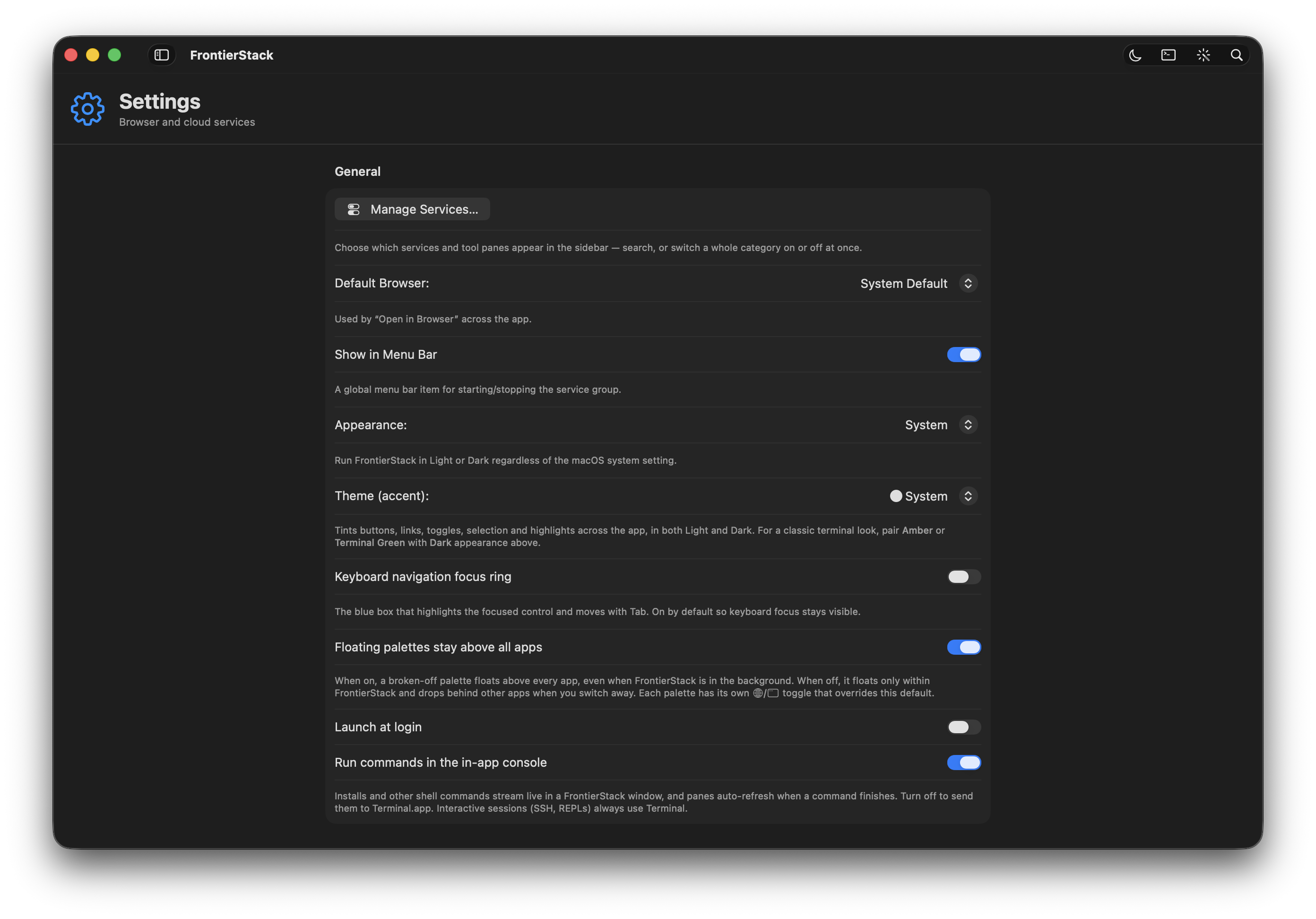
Open it from the sidebar, or from the app menu with ⌘, — the standard macOS Settings window is just a signpost with a Full Settings button that opens the same pane, because FrontierStack keeps every preference together rather than splitting them between two windows. The pane is a single scrolling form of grouped sections: General, License & Subscription, Updates, Privacy & Diagnostics, Locations, Text Editor, Images, Menus, Capabilities, and the cloud/backup destinations.
The General section holds the preferences you set once and forget. Pick a Default Browser (Safari, Chrome, Firefox, Edge, Brave or Arc, if installed) and every "Open in Browser" action across the app uses it. Show in Menu Bar adds a global menu-bar item for starting and stopping your service group. Appearance forces Light or Dark regardless of the system setting, and Theme (accent) tints the whole UI — pair Amber or Terminal Green with Dark for a classic terminal look. Launch at login and a keyboard-navigation focus ring round it out.
Two General toggles deserve attention because the AI can also set them (below). Run commands in the in-app console is on by default: installs and shell commands stream live in a FrontierStack window and panes auto-refresh when a command finishes. Turn it off to send those commands to Terminal.app instead. Interactive sessions — SSH, REPLs — always open in a real terminal. The companion External Terminal picker (under Text Editor) chooses which terminal app the "Open in Terminal" actions use: Terminal and iTerm run the command inline, while other apps open an executable .command.
17.2App-setting keys the AI can change
A handful of these preferences are exposed to the AI Administrator through the get_app_settings and set_app_setting tools, so you can simply ask: "switch my default browser to Firefox", or "stop showing the Presets menu". The assistant reads and writes only the keys in the table below — nothing else about Settings is reachable from a prompt.
| Key | Type | What it controls |
|---|---|---|
defaultBrowserBundleID | bundle id | The browser used by every "Open in Browser" action. Empty = system default. |
showInMenuBar | bool | Whether the global menu-bar item appears. |
preferInAppConsole | bool | Run commands in the in-app console (on) or send them to Terminal.app (off). |
menu.showPresets | bool | Show the Presets menu in the menu bar. |
menu.showLocations | bool | Show the Locations menu in the menu bar. |
The last two also live under the Menus section of the pane, alongside the App Settings… (⌘,) button. Hide a menu you never use; show it again the moment you do.
17.3Accounts and advanced settings
Two panes sit just outside Settings but are worth naming here. The Accounts pane (sidebar ▸ Accounts) is not about billing — it connects FrontierStack to a directory service (Active Directory, Microsoft Entra ID, Okta, OpenLDAP, FreeIPA, 389 Directory Server, Jamf or a local/remote Open Directory), tests the binding, and imports user accounts. It also includes an Open Directory editor for managing OD users and groups on a Mac that runs one. Directory work is covered with the rest of identity in Chapter 10.
"Advanced settings" in FrontierStack means the per-site Advanced Settings sheet for a website — the full Apache <Directory> and <VirtualHost> editor (Options flags, AllowOverride, Require rules, ServerAdmin, custom ErrorDocument). You reach it from a site in the Sites pane; anything the form doesn't model is editable through Edit as Text…. It is documented with the web stack in Chapter 7.
17.4Custom Instructions for the AI
The single most powerful "setting" for the AI is not in the Settings pane at all: it is the Custom instructions bar at the bottom of the AI Administrator pane. The text you write there (stored as frontierstack.md) is appended to every AI request — the assistant chat, one-shot Ask AI, skills, and the MCP server — so it is the right place to state persistent preferences once: your preferred language and tone, things the assistant should always or never do, and facts about your setup it should assume.
Click Custom instructions to expand the editor, toggle Add my instructions to every AI prompt, and type. Examples that work well: "Always reply in Japanese", "Prefer Homebrew over Docker", "Never restart MySQL during business hours (09:00–18:00)", "My production fleet host is web1.example.com". Save with the Save button, or open the file in your external editor. Because this file flows through the whole harness chain, it complements — but does not replace — the trust model in Chapter 13: instructions steer the AI's behaviour, while the read-only default and per-action approvals govern what it is allowed to do.
DB_PASSWORD); the value is injected as an environment variable at run time and never sent to a cloud model. Reference secrets in scripts as $NAME. See Chapter 13.17.5Command-Line PATH and Homebrew
Two reference panes from Chapter 2 belong to the same family of app-level controls. The Command-Line PATH pane (sidebar ▸ Command-Line PATH) shows the directories a login shell searches for commands and lets you add your own to a managed block in ~/.zprofile (or the profile you choose); entries you add are prepended to PATH and take effect in a new terminal. The app already deep-resolves tools through the shell, so this is mainly to make commands such as mlx_lm.server resolve instantly. The Homebrew pane installs and updates Homebrew itself and the formulae behind many services. Both are covered in full when you first set up the app; this chapter simply notes that they live alongside Settings as the place to manage the command environment.
17.6Licensing
FrontierStack is a free download with paid tiers, sold and billed through Square — card data is vaulted by Square, never seen by FrontierStack. After purchase you receive a licence code in the form FSK-XXXX-XXXX-XXXX. Open Settings ▸ License & Subscription ▸ Activate License…, paste the code, and this Mac is bound to your plan. Promo codes are applied at checkout on the website.
| Tier | Price | Servers | Notes |
|---|---|---|---|
| Free mode | Not a checkout plan | 1 | The built-in fallback without a paid entitlement; limited features. |
| Standard | ¥15,000/year or ¥45,000 one-time | 10 | Runs on 3 Macs. A 10-pack add-on widens every limit. The one-time purchase receives Lifetime status. |
| Standard — Bleeding edge | ¥7,500/year | 10 | Campaign subscription with no price rise after year one while it remains active. |
| Full Fleet | ¥45,000/year | Unlimited | Everything, plus the Wild Frontier update channel. No one-time or Lifetime option. |
A Standard licence runs on 3 Macs and covers a defined estate: 10 servers, 5 routers, 5 printers, 10 switches, 10 Wi-Fi access points, 10 locations, 10 KVMs, 10 UPS units, 20 IoT devices and cameras, 20 domains or DNS zones, 25 containers and VMs on servers, and 5 paired iPhones or iPads. Adding a 10-pack increases every one of those by another full allotment and adds one more Mac — so two packs means three times the base and 5 Macs. Full Fleet is unlimited throughout. The complete comparison lives at frontierstack.app/compare.
The section shows your tier, a status pill (Active, Lifetime, Past due, Canceled), the renewal date, your licence code and this Mac's server cap. Manage / Renew… and Buy / Upgrade… open the website; the ⋯ menu offers Check status now, Deactivate this Mac and Sign out. Activated Macs lists every Mac using the licence with the date it was activated, and lets you release one to free its slot — deactivating this Mac is immediate, while releasing a different Mac emails the licence owner a confirmation link, so knowing the code is never enough to remove someone else. You can also self-transfer a limited number of times per year; a Mac that loses its seat quietly drops to Free on its next check-in. The same self-serve status and seat list are available on the My Licence web page at frontierstack.app/license. The identical controls also live in a dedicated Licences pane in the Overview group of the sidebar.
17.8.1What needs Full Fleet
Standard is a complete product, not a trial: the entire local stack, local sites, DNS and certificates, migration from macOS Server and MAMP, local health and alerts, device discovery, Homebrew and local Docker, database cluster health, remote KVM and power control, the advanced remote agent, the audit and change log, AI diagnosis with proposed fixes, and remote diagnostics one server at a time — all included.
Full Fleet is about doing things to many machines at once, and about letting other systems drive FrontierStack: Fleet Run across every server, Fleet Push and Promote to Production, Service Guardian on remote hosts, AI auto-remediation and scheduled AI reports, fleet-wide security audits, EDR rollups, Kubernetes fleet actions, the production print fleet, router and firewall fleet dashboards, SNMP at scale and PoE cycling, SaaS and business monitoring, cloud inventory and cost rollups, external AI control over MCP, Fleet Skill, iPhone remote control, team and admin controls, alert routing and escalation, container fleet monitoring, GPU workloads, and production deploy workflows.
machine_id = SHA-256(IOPlatformUUID + bundle id), so copying the app to another Mac does not copy the licence. The app trusts the token until it expires plus a grace period, then refreshes; if a paid plan lapses it degrades to Free mode. Lifetime applies only to a one-time Standard purchase and never lapses; Full Fleet has no Lifetime option. This is a deterrent, not heavy DRM — reads keep working; only the limits and premium features are gated.17.7Updates
FrontierStack updates itself with Sparkle, driven by the in-app UpdateManager. The Updates section of Settings is the whole control surface. Automatically check for updates and Download updates in the background are on by default: a new build downloads silently and then offers an Update button that installs it and relaunches the app. Press Check Now any time; the current version is shown beside it.
The Check for updates menu sets how often the background check runs. Automatic (the default) checks daily — more often on Wild Frontier — while Once a day, Every 3 days, Once a week and Every 2 weeks pin a fixed interval, so if daily prompts feel noisy you can drop back to, say, a weekly check. It has no effect while automatic checking is off, and Check Now always works regardless of the interval.
There are two channels. Stable is the default and ships only when there is enough to justify an update. Wild Frontier delivers frequent, roughly every-other-day bug-fix builds — turn it on if you have requested a change and want the fix fast. To switch, choose it from the Update channel picker. Wild Frontier early builds require a Full Fleet plan; every other plan always receives Stable updates, and the pane tells you so if your tier can't opt in.
17.8Telemetry & privacy
FrontierStack collects a deliberately small amount of anonymous usage data, and you can switch all of it off. The Privacy & Diagnostics section has two toggles, both on by default. Share anonymous usage analytics sends a small daily ping to frontierstack.app; Send crash reports adds a technical backtrace, and only after you approve the prompt that appears when the app has crashed.
The analytics ping contains a random install ID (no account, no login), the app and macOS version, your hardware model and locale region, your update channel, and whether you used any AI feature. Your country is derived server-side from your IP by Cloudflare. No documents, file contents, configuration, keys, passwords or personal data are ever sent. Crash reports add only a kind, message and stack trace, written locally first so you can decline before anything leaves the Mac.
Two more sections round out the pane: Capabilities exports CAPABILITIES.md and capabilities.json — a complete, live description of every service and AI tool — for handing to an external AI engine; and the Cloud Services, Backups (Local Git), Amazon S3 and Cloud Sync (rclone) sections configure where settings backups and site files are stored. With Settings, licensing, updates and privacy understood, turn to Chapter 18 for keyboard shortcuts, the URL scheme and troubleshooting.
FrontierStack User Manual · Version 1.0.0 · Chapter 17