Chapter 13
The AI Administrator
A tool-using assistant that can see your servers, diagnose what is wrong, and fix it on your approval — with your secrets kept out of the model.
The AI Administrator — the AI Harness — is what makes FrontierStack more than a control panel. It is a tool-using assistant with a live, accurate picture of your setup. You describe a problem in plain English; it investigates with read-only diagnostics, explains what it found, and proposes a fix that you approve before anything runs. It works on this Mac and on every server you have linked over SSH, and it never sees your passwords. This chapter explains how it thinks, what it can do, and how to keep it safe.
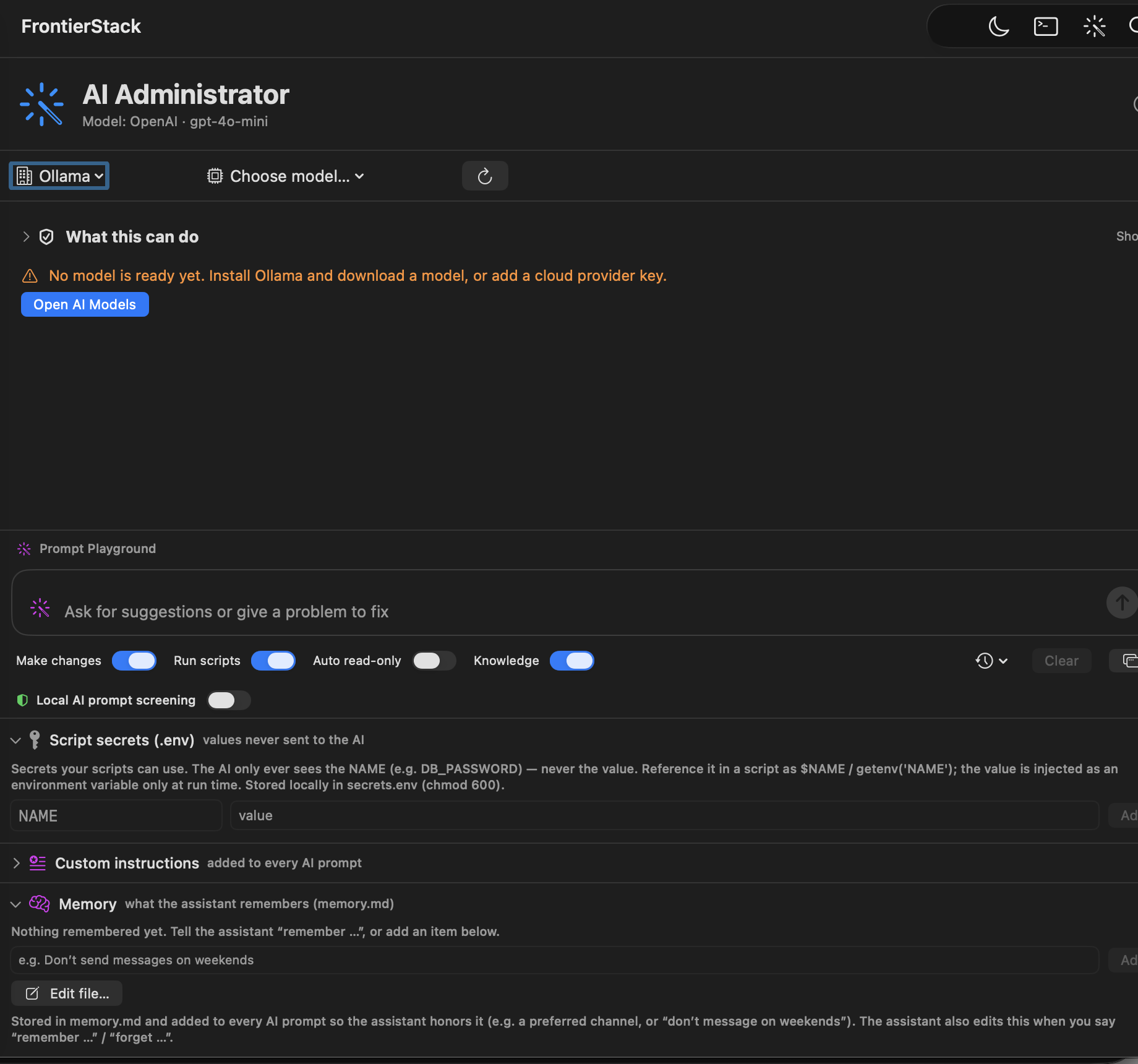
.env secret vault and long-term memory.13.1Choosing a model
The Administrator is not tied to one vendor. At the top of the pane you choose the model that drives it:
- FrontierStack AI — the default Harness engine when its zero-retention service is available. It needs no API key of your own and runs Qwen3 through Enfour's AI Cloud. Use of FrontierStack's AI servers is free for users for now and may become a paid service later. The upstream key and provider endpoint stay on Enfour's server; prompts are deterministically redacted before upload and the service must attest zero retention. Because this final Harness engine is already zero-retention, FrontierStack skips the separate cloud Prompt Firewall pass instead of sending the same text twice. Tool restrictions and approvals remain unchanged.
- A cloud model — the most capable option for hard diagnosis and multi-step work. You supply an API key (stored locally). With an OpenAI key, the picker offers GPT-6 Astra for the hardest work, GPT-6 Sol for complex coding and professional work, and GPT-6 Luna for focused high-volume tasks, plus the earlier GPT-5.6 family (Sol, Terra and Luna).
- Perplexity — add a Perplexity API key in AI Models, then choose Sonar, Pro Search, Deep Research or Advanced Deep Research. FrontierStack uses the Agent API, giving the Administrator web search, URL reading, source citations and its normal guarded tools. Model and research usage is billed to your Perplexity API account.
- A local model — Ollama, LM Studio, or any OpenAI-compatible server on your Mac (LocalAI, Jan, llama.cpp), plus Apple Intelligence: the on-device Foundation Model on Apple silicon with macOS 26, used natively or via Apfel (a one-command install the AI Models pane sets up, runs, and can start at login or app launch for you). Local models keep work entirely offline — nothing leaves the Mac, so the pre-send screening below isn't needed and is hidden. See Chapter 15 for running local models.
- Your own subscription tool over MCP — drive the whole app from Claude Code, Claude Desktop or Cursor on the flat plan you already pay for, with no per-token bill. This is covered in Chapter 14.
13.2Let a vision model inspect a pane
When a setting is visible in FrontierStack but the Administrator's tools cannot inspect that control, click Attach Screenshot… above the prompt. This is a model capability, not a Qwen-only feature: FrontierStack sends the appropriate image format to compatible OpenAI-style, Anthropic and local Ollama vision models. A custom or routed model whose capability is unknown can be tried, although its server may reject the image.
FrontierStack never captures your screen automatically. You select one image and review the exact prepared preview. The app limits it to 1,800 pixels, strips metadata by re-rendering it, and uses macOS text recognition locally to black out lines containing known stored credentials, personal account names, private fleet identities or secret-like tokens. OCR is defence in depth, not a guarantee: crop to the relevant pane and check the preview before sending.
13.3How a conversation works
You type a request the way you would brief a colleague — “why is the site throwing 502s?”, “check whether the certificate on shop.example.com is about to expire”, “restart Postgres on db-02”. The Administrator then works in a loop:
- It grounds itself. Before acting it discovers what you actually run — the service catalog, your linked servers and devices, the current health board — so its answers match your machine, not a generic guess.
- It investigates read-only. It reads logs, runs diagnostics, checks ports and certificates, and inspects config files. None of this changes anything.
- It explains, then proposes. It tells you what it found and, if a change is needed, shows the exact command or file edit it wants to run.
- You approve. Nothing that changes the system runs until you click approve on that specific action. It then runs the fix and re-checks to confirm.
You never have to wait for a turn to finish. Type another message while it works and it joins the running conversation at the assistant's next step — the Administrator reads your new instruction alongside its tool results and adjusts course mid-task, the way you would redirect a colleague. Messages that miss the turn are sent right after it, in order, and survive a Stop so nothing you typed is lost. And when a tool call hangs — an unreachable SSH host, a wedged service — press Skip beside the progress indicator: the assistant continues immediately and is told that tool may be broken, so it works around the failure instead of retrying into it.
13.4The trust model: read-only by default
This is the most important section in the chapter. The Administrator is built so you can hand it production servers without losing control.
| Setting | What it unlocks |
|---|---|
| (default) | Read-only. The assistant can look at everything — logs, health, config, diagnostics — but cannot change anything. |
| Allow changes | Permits mutating actions (restart a service, write a file, issue a certificate, open a firewall port). Each one still shows an approval card. |
| Allow scripts | Permits the general shell tool and saved-script execution. The script and a plain-English explanation are shown for approval before it runs. |
Two principles sit on top of these toggles:
- Per-action approval. Even with changes enabled, every mutating step is shown to you first — the actual command or diff — and nothing runs until you approve that action. There is no “approve everything” mode for ad-hoc changes.
- Remote actions need their own consent. Controlling a linked server through its monitoring helper additionally requires that server's own “Allow actions” switch, set in its Host Monitor pane (Chapter 8).
- Destructive database actions need a high-end model. Repairing, restoring or rebuilding a database is irreversible enough that FrontierStack hard-gates those steps to a frontier model — a small or on-device model can still read the log and diagnose, but is refused the destructive tool until you switch to a capable model (Claude Opus/Sonnet, GPT-4o/o-series, Gemini Pro).
DELETE, TRUNCATE, database/table drops, unscoped updates, file-removal and overwrite primitives, disk wipes, and destructive saved scripts, cron jobs or event triggers are refused before approval. Structured file writes preserve the previous file. vhost_remove disables one Apache/nginx vhost reversibly while preserving its document root. An intentional restore from a named backup remains available only through the separately gated local recovery workflow.13.5The secrets vault
Real administration needs credentials — a database password, an SSH sudo password, a Cloudflare token. FrontierStack keeps these in a local .env vault so the model never sees them.
You add named secrets in the Administrator's Script secrets (.env) bar — for example DB_PASSWORD, CF_TOKEN, SSH_SUDO_PASS. When the assistant writes a script that needs one, it references the name, not the value:
mysql -u root -p"$DB_PASSWORD" -e "SHOW DATABASES;"At run time the app injects the real value as an environment variable — locally, or over SSH on the target server — and injects only the names a script actually references. The model is told the secret names (so it can write correct scripts) but never the values, and command output is secret-redacted before it is sent.
- Shell:
$NAME/"$NAME" - PHP:
getenv('NAME') - Python:
os.environ['NAME']
PROD_DB_PASSWORD, STAGING_DB_PASSWORD, a per-server BALTHAZAR_MYSQL_PW. The assistant picks the name that matches the target; if the mapping is unclear it asks rather than guessing.13.6Import from a repo, and frontierstack run
Some developers keep their network settings in a repo for their agents — an SSH config, an Ansible inventory, .env files full of API keys. FrontierStack deliberately doesn't export credentials to a repo: a repo is copied to every clone, CI run and agent sandbox, and its history keeps a secret after the file is deleted. It does import one you already have.
Open Migrate Setups ▸ Servers ▸ Import from a Repo… (also in the Script secrets bar). Choose a folder, or paste a git address to clone it into a temporary folder that is deleted when the window closes.
| Found in the repo | Imported as |
|---|---|
SSH config: Host, HostName, User, Port, IdentityFile | Servers in the fleet; a key inside the repo is copied to ~/.ssh/frontierstack |
Ansible inventory (INI or YAML) with group_vars / host_vars | Servers with their environment (production, staging…); a become password becomes the server's sudo password |
.env, .env.*, .envrc | Script Secrets; well-known names such as CLOUDFLARE_API_TOKEN can also fill that service's own slot |
| SOPS, Ansible Vault, age, git-crypt files | Decrypted with your own tools and keys, in memory only |
Anything else (a routers.yml, Terraform variables) | Interpret with FrontierStack AI |
The AI step always uses FrontierStack AI's main model, and it never sees a value. Every secret-looking value is replaced by a placeholder such as ‹V7›; the model answers with placeholders, and the real values are filled in on your Mac only when you click Import. Show What the AI Sees… displays the exact text that is sent.
After the import, FrontierStack lists the files that are in the repo's git history, offers Replace Key for services whose API can issue a new one, and can save a .env.frontierstack reference file — names only, safe to commit:
DB_PASSWORD=fs://DB_PASSWORD
CLOUDFLARE_API_TOKEN=fs://CLOUDFLARE_API_TOKEN
Turn on Let frontierstack run use these secrets in the Script secrets bar, and your agents can run commands with the values without ever holding them:
frontierstack run -- ./deploy.sh
frontierstack run --secret API=CLOUDFLARE_API_TOKEN -- terraform plan
The values are injected as environment variables for that one command and masked in its output (--no-masking for interactive programs). It works with the app closed, respects App Lock, can't open secrets encrypted with a security key, and records each run — names only — in the change log.
13.7Prompt Firewall
Prompt Firewall is an optional semantic check on top of FrontierStack's always-on deterministic redaction. Choose On this Mac to use an Ollama or supported local OpenAI-compatible model, or explicitly choose Enfour's AI Cloud. It can warn and ask, automatically redact what it finds, or block the send.
On-device screening keeps the check entirely on this Mac. Enfour's AI Cloud receives only text after FrontierStack has removed known credentials, usernames, private addresses and secret-shaped patterns. It is free for users for now. The cloud service must attest zero retention on every response; if that assurance or the service disappears, screening returns an unverified result and Block mode stops the send. Enfour's upstream provider key and endpoint never reach the app, allowing Enfour to change the trusted provider later without distributing a new key or remotely configuring the app to call an arbitrary address.
13.8What the Administrator can do: the tools
The assistant acts only through a fixed set of audited tools. Each is guard-railed: read-only tools always work; mutating tools need the toggles above and an approval. Grouped by job:
| Area | Representative tools |
|---|---|
| Discover & ground | app_capabilities (what FrontierStack can manage), search_app_help (current Help for FrontierStack settings and controls), list_targets (servers & devices), get_server_health, get_location, get_sidebar_state |
| Diagnose (read-only) | diagnose (ping, dig, curl, netstat, df, ps…), read_logs/tail_log (incl. the Wi-Fi event log), get_location (with live Wi-Fi radio detail), security_audit, port_check, cert_expiry_check, whois_lookup, ip_analysis, metrics_snapshot, php_test/python_test |
| Control services | service_action (Homebrew services), repair_service, reload_webserver, restart_app, monitor_action (via a server's helper), reboot_host |
| Web & databases | list_sites/read_site_file/write_site_file, vhost_create/vhost_remove, list_databases/run_sql, db_dump/backup_now/restore, issue_certificate |
| Network & perimeter | firewall_rule, flush_dns, dns_record (Cloudflare), router_info (status, health & security signals), reboot_router, open_web_ui, discover_devices/pin_device, internet_speed |
| Mail security | email_auth_dns (SPF/DMARC/DKIM), harden_mail_postfix, test_open_relay, generate_dkim_key, install_mail_cert |
| Security testing | strix_status (read the Strix install, scan history & findings), strix_scan (run an authorised penetration test), strix_control (stop, re-run, restart, silence) — the two acting tools are local-only |
| Files & the shell | read_remote_file/write_remote_file/upload_file, and run_script — general shell on this Mac or any linked server |
| Scripts & schedules | list_scripts/run_saved_script/save_script, schedule_cron, schedule_app_action, list_sample_scripts |
| Messaging | get_messaging_channels, send_notification, get_alert_errors |
| Knowledge | list_skills/load_skill, list_notes/read_note, obsidian_search/obsidian_read_note, remember/list_memory/forget |
| The app itself | open_pane, set_pane_visible, manage_palette, set_services_visible — the assistant can navigate and reshape the sidebar for you |
The general-purpose run_script tool is the assistant's shell: anything the fixed tools do not cover, it does by writing a small, readable script and showing it to you for approval. On a remote server it works in two passes — a read-only test script to find the problem, then a minimal fix, then a re-test to confirm.
13.9Skills, notes and memory
Three features let the Administrator work from your knowledge rather than generic defaults.
13.12.1Skills
Skills are curated, multi-step playbooks — a fleet security audit, a web-stack restart procedure — managed in the AI Skill Manager. The assistant lists them cheaply (names only) and loads one's full instructions on demand, so a task follows your approved procedure instead of improvising.
13.12.2Notes shared with the AI
The Notes pane (Chapter 3) holds credentials, runbooks and instructions, each behind a per-note lock that is off by default. The assistant can read only the notes you have explicitly unlocked with Share with AI; it sees their titles to know what exists, and reads a body only when a task needs it.
13.12.3Long-term memory
Tell the assistant “remember that LINE is my preferred channel” or “never send messages on weekends” and it saves the rule to a durable memory.md so it honours it in future sessions. You can list and forget memories at any time.
13.12.4Knowledge Folder, Obsidian and Perplexity Brain
The Knowledge Folder pane accepts any local Markdown folder. FrontierStack keeps managed inventory, incidents, changes, SOPs, runbooks, prompts and recipes under its FrontierStack/ subfolder. Obsidian is an optional editor; installed vaults appear as shortcuts, but no Obsidian installation is required.
External models cannot read the full local folder. For Perplexity Projects and Brain, click Prepare Perplexity Folder. The generated Perplexity Export contains only a redacted inventory and capabilities by default, omitting addresses, MAC addresses, account names, credentials, private notes and journals. Sharing procedures or journals has a separate opt-in. Review the folder, attach it to a Perplexity Project, then enable Brain if your plan offers it.
13.10This Mac and your fleet
Almost every tool takes a target. Omit it and the tool runs on this Mac; set it to a linked server's name and the same diagnostic, log read, script or fix runs there over SSH (read-only tools stay read-only). So the same conversation can move fluidly from “check this Mac’s disk” to “now do the same on web-01 and edge-03”. Linking servers and the host-monitor helper are covered in Chapter 8.
Before privileged work, the harness reads a non-secret access status for the selected target. A linked server reports whether its SSH/root/sudo password is saved locally in FrontierStack's Keychain; only the fact that access is available reaches the model, never the value. This Mac reports whether the approved privileged helper is ready or whether a supported action will show the normal interactive macOS administrator-password prompt. When access is available, the assistant should try the bounded tool after your approval instead of stopping at instructions. Free-form AI scripts are not automatically given a server's saved password.
13.11Custom instructions and history
The Custom Instructions editor (Chapter 17) lets you shape the assistant's standing behaviour — house style, what to summarise, defaults you always want. Past conversations are kept in the history menu so you can return to an investigation, and the assistant can pick up where it left off.
13.12A worked example
To see the pieces together, here is a typical exchange — “the shop is down with 502s.”
The assistant callsget_server_healthand sees Apache up but PHP-FPM down on web-01. It reads the PHP-FPM log withread_logs(target web-01) and finds the pool failing to start after a config edit. It shows you the offending lines, proposes a one-line fix towww.confviawrite_remote_file, and — once you approve — reloads withreload_webserverand re-checks the site over loopback. Green. If you ask, it sends a one-line all-clear to your team withsend_notification.
Throughout, no password reached the model, every change waited for your approval, and the whole thing is something you could have done by hand — just faster.
FrontierStack User Manual · Version 1.0.0 · Chapter 13